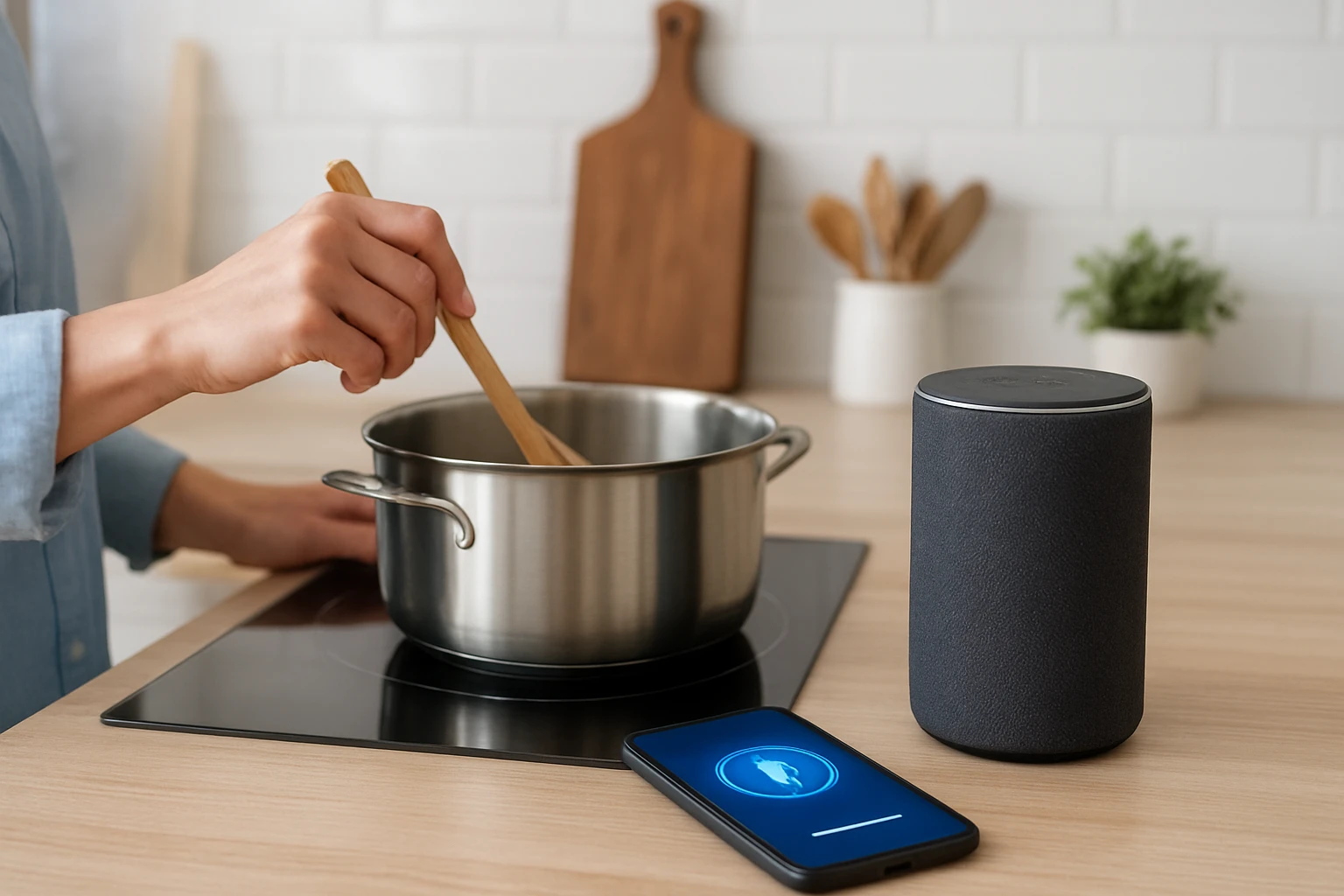

How to Create Voice Assistant Automation Routines for Hands‑Free Kitchen Tasks (Step‑by‑Step for Alexa, Google Assistant & Siri)
In modern kitchens, efficiency often depends on how well technology can be leveraged. This guide teaches readers to design voice‑assistant routines that streamline cooking, cleaning, and inventory tasks without lifting a finger. By the end of the article, one will be able to program Alexa, Google Assistant, and Siri to control appliances, set timers, and retrieve recipes automatically. The value lies in saving time, reducing errors, and creating a safer environment where hands remain free for food preparation.
What You'll Need
- Smart speaker with built-in voice assistant (e.g., Google Bluetooth Smart Speaker)
- Wi‑Fi network with stable internet access
- Compatible smart plugs or smart appliances (e.g., Wi‑Fi enabled coffee maker, smart light strip)
- Smartphone or tablet with the respective assistant app installed
- Basic knowledge of the assistant's routine builder
Step 1: Set Up Your Smart Speaker
The foundation of any voice‑driven kitchen automation is a reliable smart speaker. Unbox the Google Bluetooth Smart Speaker and place it on a stable countertop away from direct heat. Connect the speaker to Wi‑Fi using the Google Home app; the process involves selecting the device, entering network credentials, and confirming the connection.
This speaker offers a 30‑watt woofer and tweeter, delivering clear highs and deep bass that ensure voice commands are heard even over kitchen noise. Integrated Google Assistant allows hands‑free control of smart home devices, weather updates, and recipe searches. At a price of $119.00 and a rating of 4.4/5.0 from 150 reviews, it balances affordability with performance.
Once connected, test the microphone by saying, “Hey Google, what's the temperature in the oven?” The assistant should respond verbally, confirming that the device is ready for routine creation.
Step 2: Connect Smart Appliances to the Same Network
For voice commands to trigger appliances, each device must be on the same Wi‑Fi network as the speaker. Plug a smart plug into the outlet that powers the coffee maker, then add the plug to the Google Home app by selecting “Add Device” and following the on‑screen instructions. Repeat the process for any other appliances, such as a smart light strip for under‑cabinet illumination.
Smart plugs act as bridges between voice assistants and traditional appliances, converting a simple on/off command into actionable kitchen tasks. They are inexpensive, typically under $30, and require no additional wiring, making them ideal for renters or temporary setups.
After adding each plug, rename them descriptively (e.g., “Coffee Maker Plug”) to simplify routine configuration later.
Step 3: Create a Morning Brew Routine (Google Assistant)
Open the Google Home app, navigate to “Routines,” and select “Add a routine.” Name the routine “Morning Brew.” Under “When I say,” type the trigger phrase “Hey Google, start my morning.”
Next, add actions in the following order:
- “Turn on Coffee Maker Plug” – this powers the coffee maker.
- “Set kitchen lights to 70% brightness” – controls the smart light strip for a gentle wake‑up.
- “Play a news briefing” – uses the speaker's built‑in streaming capability.
Save the routine and test it by saying the trigger phrase. The speaker will confirm each action, and within seconds the coffee maker will begin brewing. The integration of the Google Bluetooth Smart Speaker ensures that voice recognition remains accurate even with background kitchen sounds.
Step 4: Build an Alexa Cooking Timer Routine
If the kitchen already contains an Amazon Echo device, you can complement the Google speaker with Alexa for redundancy. Open the Alexa app, tap “More,” then “Routines,” and choose “Create Routine.” Set the trigger phrase to “Alexa, start dinner timer.”
Add the following actions:
- “Wait 5 minutes” – gives you a brief moment to finish prep.
- “Set a 30‑minute timer” – useful for baking or simmering.
- “Announce: ‘Timer started, I will remind you when it ends.’” – provides audible confirmation.
- Optional: “Turn on oven plug” – if the oven is connected to a smart plug.
Alexa’s ability to handle multiple sequential actions makes it ideal for complex cooking workflows. The routine can be edited later to adjust timer lengths or add additional steps such as “Play a cooking playlist.”
Step 5: Enable Siri Shortcuts for iOS Users
iPhone users can harness Siri Shortcuts to control HomeKit‑compatible devices. Open the Shortcuts app, tap “Create Shortcut,” and add an “If” action that checks the time of day. Then add “Control Home” actions to turn on the kitchen lights and a “Run Script Over SSH” action if you have a Raspberry Pi controlling a smart kettle.
Assign the shortcut a voice phrase like “Hey Siri, start breakfast.” When invoked, Siri will execute the series of actions without requiring manual interaction. Although Siri does not natively support Google Assistant devices, the Google speaker can still serve as a music source by streaming via Bluetooth from an iPhone.
Testing the shortcut confirms that the lights brighten, the kettle begins heating, and Siri audibly acknowledges completion.
Tips & Pro Tips
- Place the smart speaker at ear level to maximize microphone pickup and reduce false triggers.
- Use descriptive device names; ambiguous names like “Plug 1” cause confusion during voice commands.
- Group related devices in the assistant app (e.g., “Kitchen Lights”) to trigger multiple lights with a single command.
- Enable “Personal Results” in Google Assistant settings so the speaker can read calendar events or grocery lists while you cook.
- For noisy environments, consider enabling “Voice Match” so the assistant only responds to recognized voices, reducing accidental activations.
Troubleshooting
Problem: The speaker does not respond to commands.
Solution: Verify that the speaker is connected to Wi‑Fi, ensure the microphone is not muted (check the mute button), and restart the device if necessary.
Problem: Smart plug fails to turn on.
Solution: Confirm the plug is within Wi‑Fi range, reset the plug by holding the reset button for 10 seconds, and re‑add it to the assistant app.
Problem: Routine actions occur out of order.
Solution: Review the routine steps in the app; ensure “Wait” actions are inserted where timing is critical, and save changes before testing again.
Conclusion
By following the five steps outlined above, one can transform a conventional kitchen into a hands‑free workspace powered by Alexa, Google Assistant, and Siri. The integration of a reliable smart speaker—such as the Google Bluetooth Smart Speaker—provides accurate voice recognition and high‑quality audio for seamless interaction. Implementing smart plugs and routine builders further automates repetitive tasks, allowing cooks to focus on creativity rather than manual controls. Readers are encouraged to experiment with additional routines, expand device compatibility, and enjoy the efficiency gains that voice automation delivers.
Products Mentioned in This Guide
Frequently Asked Questions
What smart devices are required to set up voice‑assistant kitchen routines?
You need a smart speaker (Alexa, Google Assistant, or Siri), a stable Wi‑Fi connection, compatible smart plugs or appliances, and a smartphone or tablet with the assistant’s app.
How do I create a routine that starts the coffee maker with a voice command?
Add the coffee maker as a smart plug in the assistant’s app, then create a routine that triggers the plug to turn on when you say a phrase like “Hey Alexa, start my coffee.”
Can I use voice assistants to set multiple timers for different cooking steps?
Yes, most assistants let you add multiple timers within a single routine or by issuing separate voice commands for each timer.
Is it possible to retrieve recipes hands‑free while cooking?
You can link a recipe service to your assistant and include a voice command in a routine that reads the next step or searches for a specific recipe.
What safety precautions should I consider when automating kitchen appliances?
Ensure appliances are compatible, keep cords away from heat, use smart plugs with overload protection, and test routines before cooking to avoid accidental activation.